

Pair your server
When atreoAGENT starts for the first time, it can’t yet talk to your atreoLINK account. It doesn’t know who you are, and atreoLINK doesn’t know it exists. Pairing is the one-time process that locks the agent to your atreoLINK account.
It’s designed so that atreoLINK never sees the pairing secret — the exchange happens directly between your browser and your agent, with atreoLINK acting as a blind relay.
The pairing flow
Section titled “The pairing flow”-
The agent generates a long-term identity key and a one-time pairing token. Both are kept entirely on the server. The token is embedded in the URL printed to the logs.
-
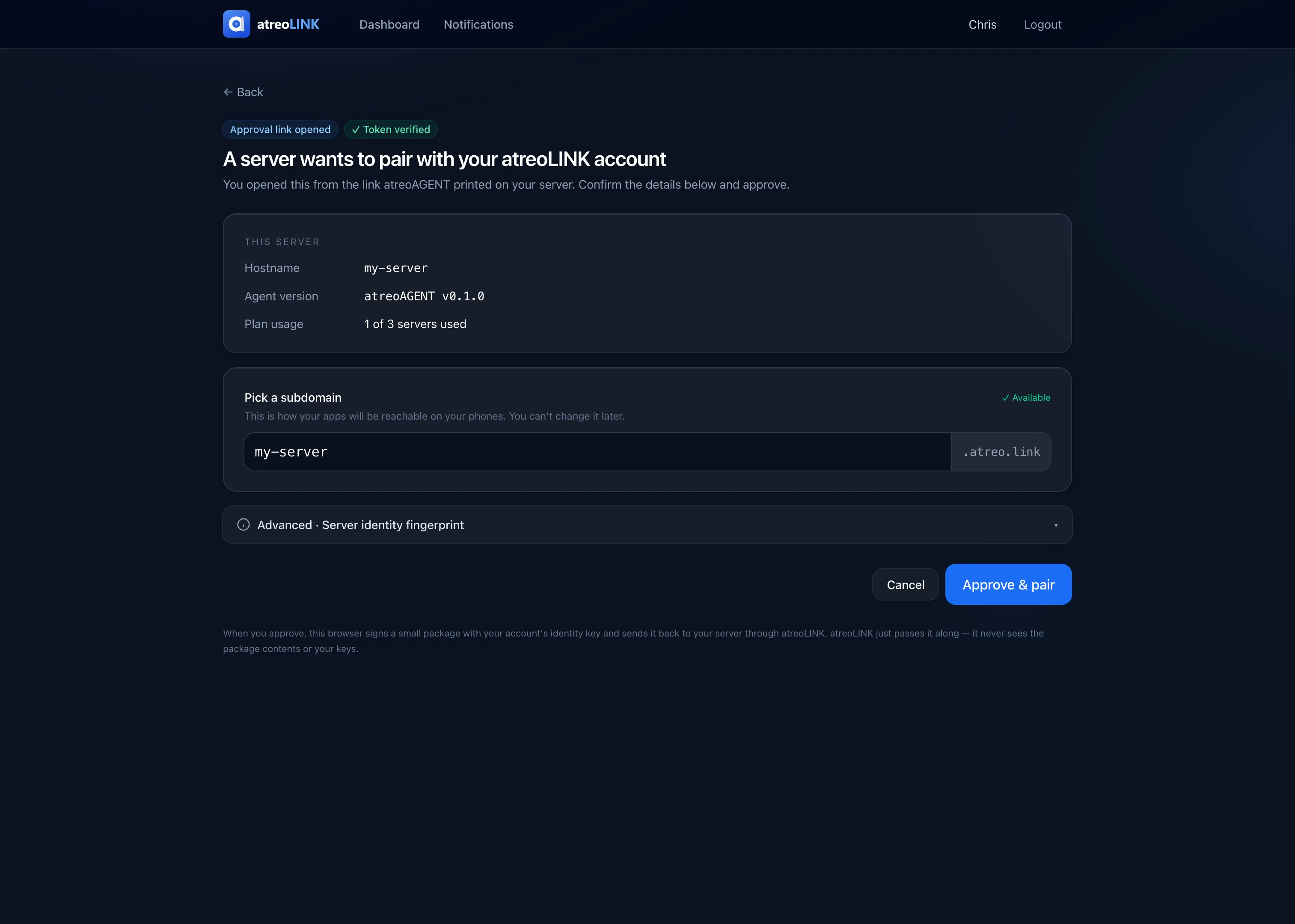
You open the printed URL in a browser signed in to your atreoLINK account. The URL has the pairing token in its hash fragment, so it’s never sent to atreoLINK in the request. The browser reads it locally.
-
You confirm in the browser, choosing the subdomain you want (e.g.
alice.atreo.link). The browser proves to your agent that this is really you, encrypted under the pairing token from the URL fragment, and sends the result to atreoLINK as opaque ciphertext. -
atreoLINK relays the ciphertext to the agent over the control channel. atreoLINK can’t decrypt or modify it.
-
The agent decrypts it using its own copy of the pairing token, verifies it, and pins your account permanently. From now on, the agent only accepts management commands from your account.
-
Pairing complete. The agent stores the pairing data in its
admin_pin.jsonfile (atomically written) and starts its main subsystems: WireGuard, the proxy, the forward-auth service, the notify API, and the tunnel client.
This is what keeps your secrets off the coordination server: no part of your password, your account’s secrets, or your agent’s pairing secret ever reaches atreoLINK. atreoLINK brokers the exchange and stores the coordination metadata it needs — your account, the device record, and the agent’s public identity — but never the secrets themselves.
What you actually do
Section titled “What you actually do”In practice, you only do steps 2 and 3 by hand:
-
Run the agent. Get the URL from
docker logs -f atreoagent. -
Open the URL in a browser signed in to atreoLINK.
-
Pick your subdomain when prompted. You can choose anything that’s not already taken under
*.atreo.link. -
Click Approve. Within a few seconds the agent’s logs show something like:
Device paired successfullyOwner identity pinned: <hex-fingerprint>WireGuard interface upReverse proxy listening on :443
Re-pairing
Section titled “Re-pairing”If you ever need to re-pair (lost the agent’s data volume, migrating to new hardware without keeping the volume, etc.):
docker exec atreoagent atreoagent pairThis forces a fresh pairing flow. You’ll need to re-pair every connected mobile device afterwards, because the new agent has a different long-term identity key. Members will see “this device’s identity has changed” and need to reconnect.
Unpairing from atreoLINK
Section titled “Unpairing from atreoLINK”If you remove the device from your atreoLINK dashboard:
- atreoLINK sends
device:unpairedover the control channel. - The agent stops WireGuard, deletes its config, and exits.
- Docker’s
restart: unless-stoppedpolicy restarts the container. - The container comes up unpaired and prints a fresh pairing URL.
This is the supported path for “I want to start over”. Your existing member invites are lost, and re-pairing means re-inviting.
Security model summary
Section titled “Security model summary”- Your account is pinned at pair time. The agent only acts on management commands it can confirm came from you, regardless of what atreoLINK relays.
- The pairing token is short-lived and one-shot. If the printed URL is intercepted and somebody completes the approval before you do, that’s a successful man-in-the-middle. Open the URL on a trusted machine.
© 2026 atreoLABS. All rights reserved.
WireGuard is a registered trademark of Jason A. Donenfeld.