

Add apps
Each “app” in atreoLINK is a service running on your server: Jellyfin, Immich, Home Assistant, a dashboard, a file share, a game server. atreoLINK supports two kinds:
- Reverse-proxy apps (the default) — an HTTP(S) service the agent serves on its own subdomain (e.g.
jellyfin.alice.atreo.link) behind the wildcard TLS certificate. You give it an internal URL to forward to. - Exposed-port apps — a raw TCP or UDP port (a game server, SSH, a database) or a web service on a non-proxied port, opened directly to the members you share it with through the agent’s per-peer firewall. Members reach it at the server’s tunnel address and port (or its LAN address at home); for HTTP/HTTPS ports the app’s subdomain redirects there automatically.
Most self-hosted web apps are reverse-proxy apps. Reach for an exposed port when the service isn’t plain HTTP or needs a client that connects to a host and port directly. See Exposed-port apps below for the details.
You add apps from your server’s page in the web dashboard — open the server and click Manage.
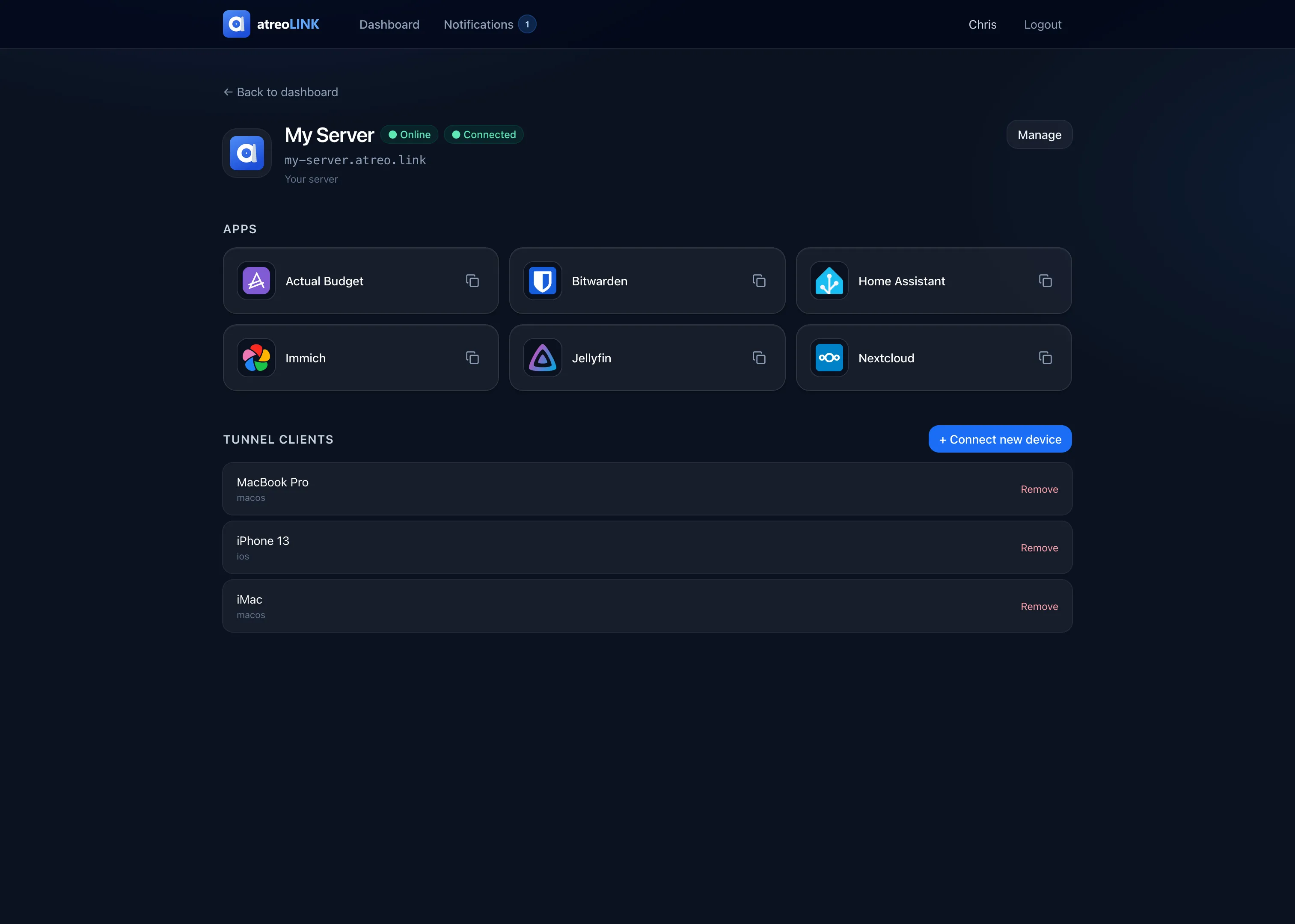
Adding a new app
Section titled “Adding a new app”-
Sign in to app.atreolink.com, pick your server, and click Manage.
-
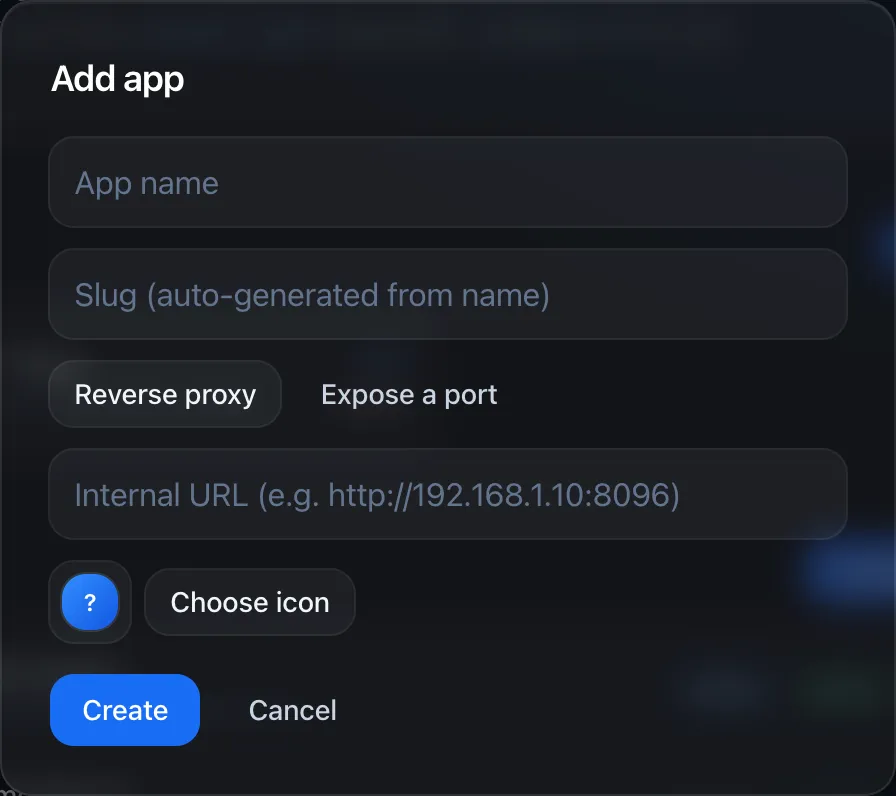
In the Apps section, click + Add app. The form opens with Reverse proxy selected.
-
Choose the app type and fill in the fields. New apps default to Reverse proxy; click Expose a port for a raw-port app.
For a Reverse proxy app:
Field Example Notes Name JellyfinWhat members see in their app list. Slug jellyfinBecomes the leftmost part of the subdomain. Lowercase, hyphen-separated, must be unique on this server. A few names are reserved (see below). Internal URL http://localhost:8096Where the agent forwards the proxied request. Icon (picker) Pick an icon from the built-in library, see below. For an Expose a port app:
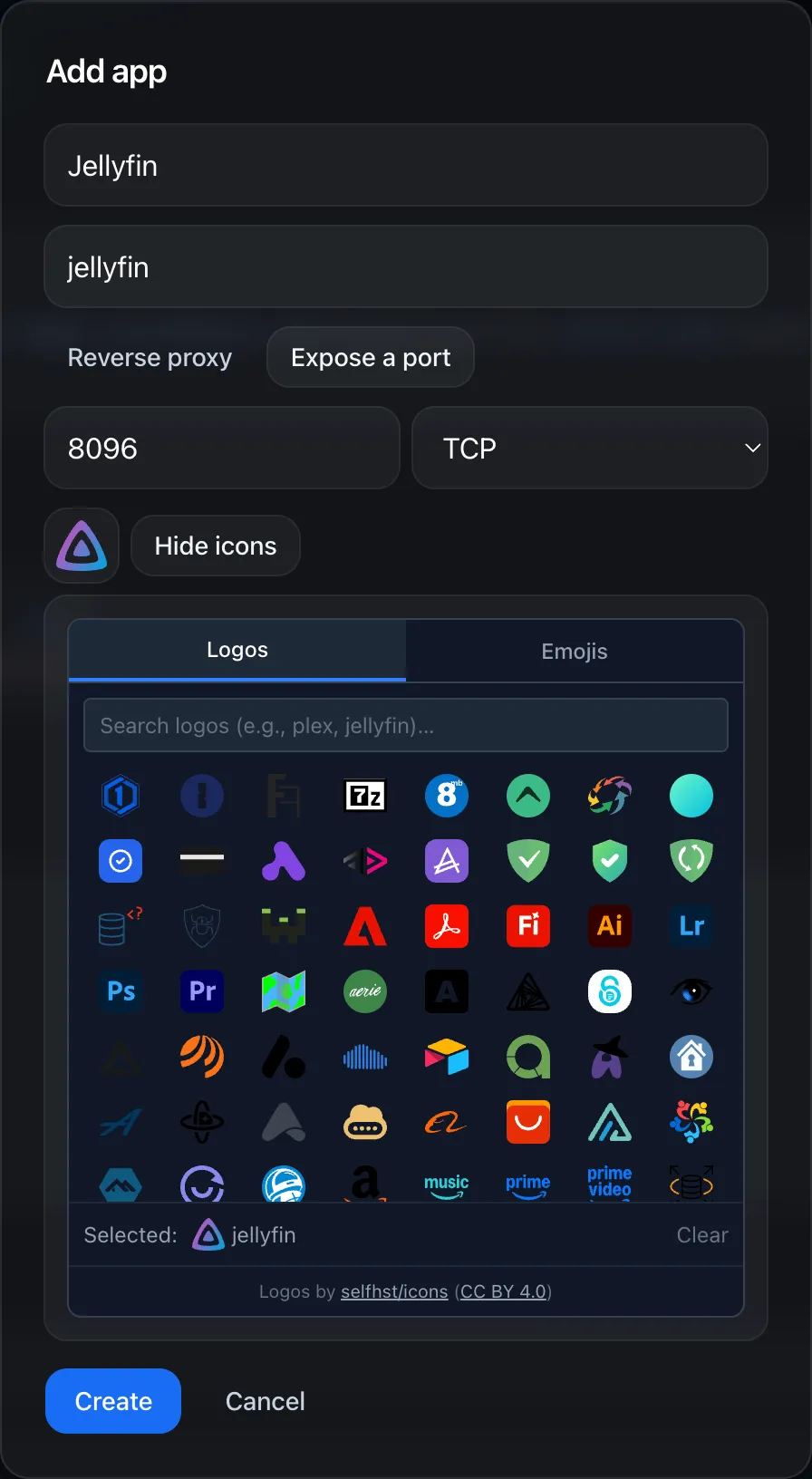
Field Example Notes Name MinecraftWhat members see in their app list. Slug minecraftIdentifier and icon label for the app; must be unique on this server. Port 25565The port on the server to open, 1–65535.Protocol TCPTCP,UDP,HTTP, orHTTPS. See Exposed-port apps.Icon (picker) Pick an icon from the built-in library, see below. -
Click Save. Within a few seconds the agent picks up the new app. Neither kind triggers a new certificate round: reverse-proxy apps (and the redirect an HTTP/HTTPS exposed port serves on its subdomain) are covered by the existing wildcard TLS certificate, and raw TCP/UDP ports use no subdomain at all.
-
Members who have access to this app see it in their list immediately, no client reconnect needed.
Picking an icon
Section titled “Picking an icon”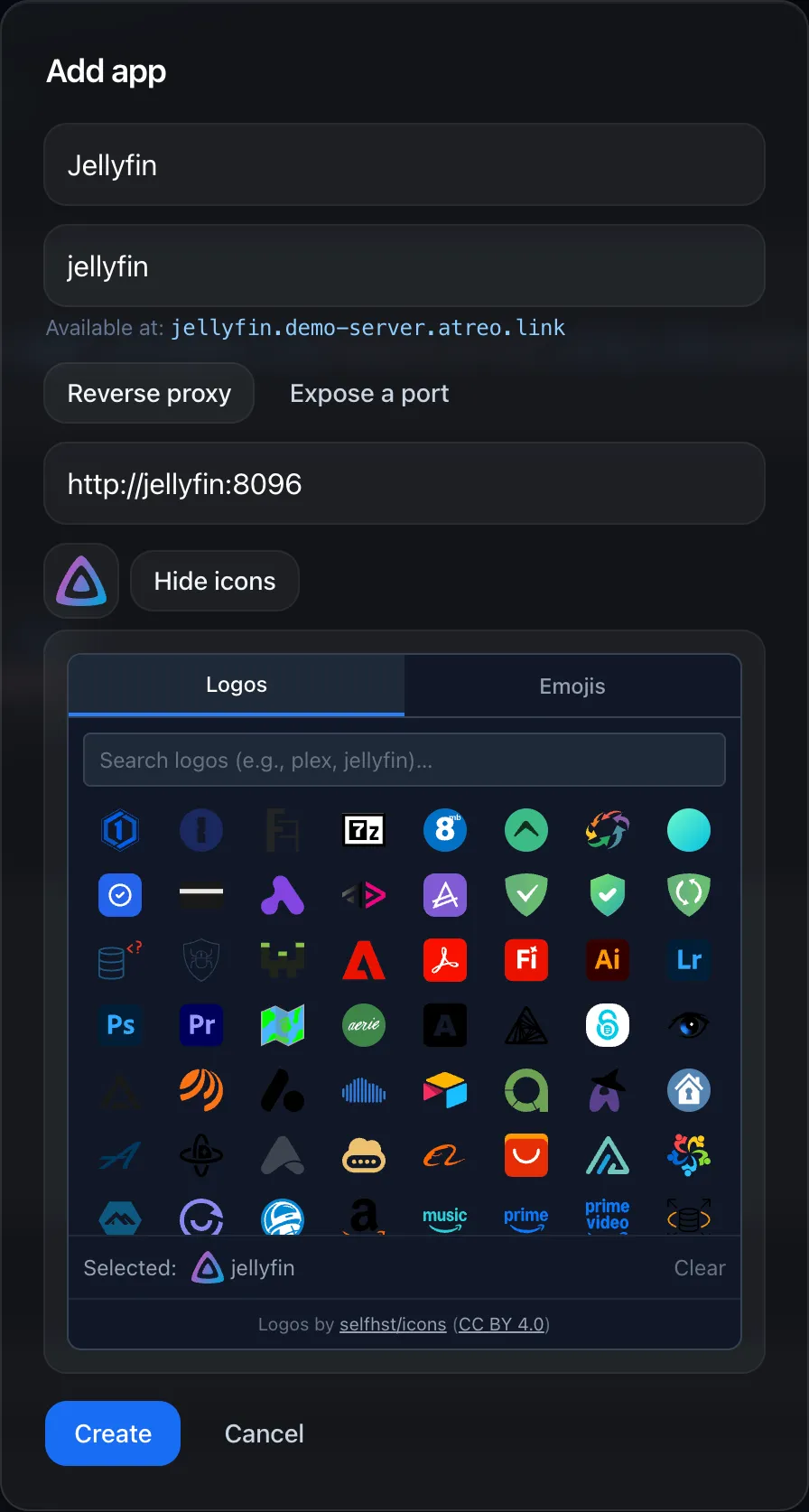
The icon picker has two tabs:
- Logos. A large library of service logos sourced from selfh.st/icons. Search by service name (
plex,jellyfin,home assistant,immich) and pick the one that matches. - Emoji. Categorised emoji (Media, Files, Home, Tech, Communication, Other) for apps that don’t have a recognisable logo. Useful for “my random dashboard”, “the family wiki”, or anything custom.
The chosen icon shows up in the mobile app, the web dashboard, the TV apps, and notifications related to that app. There’s no longer a way to upload a custom image; the built-in library covers everything common, and emoji handles the rest.
URL pattern
Section titled “URL pattern”Each reverse-proxy app is served at:
https://<slug>.<your-subdomain>.atreo.linkFor a subdomain of alice and an app slug of jellyfin, that’s https://jellyfin.alice.atreo.link. If you’ve attached a custom domain like home.example.com, it’s also reachable at https://jellyfin.home.example.com. Both URLs serve the same app.
The wildcard TLS certificate covers *.<your-subdomain>.atreo.link (and *.your-custom-domain.com if attached), so adding apps doesn’t trigger a new certificate provisioning round.
Internal URL conventions
Section titled “Internal URL conventions”The internal URL is whatever the agent can reach from the server itself. Common patterns:
- Container name as hostname:
http://jellyfin:8096. The agent maps Docker container names to their IPs automatically (when the Docker socket is mounted; see Install), so you don’t have to publish ports just to reach the container locally. - Same-host Docker container with a mapped port:
http://localhost:8096. - Different host on your LAN:
http://192.168.1.50:8096(works because the agent runs withnetwork_mode: hostand can reach your LAN). - HTTPS upstream with self-signed cert:
https://localhost:8443. Supported but verify mode depends on agent config.
The agent doesn’t validate that the URL is reachable; if the request fails, the proxy returns 502.
Exposed-port apps
Section titled “Exposed-port apps”A reverse-proxy app only works for plain HTTP(S) services. When you need to share something that isn’t a web page on a subdomain — a Minecraft or other game server, an SSH port, a database, a service speaking its own protocol — register it as an exposed-port app instead.
Click Expose a port in the Add-app form and set a Port and Protocol:
| Protocol | Use it for | How members reach it |
|---|---|---|
| TCP | Game servers, SSH, databases — anything over raw TCP. | The app shows a copyable host:port. Paste it into the relevant client. |
| UDP | Game servers and other UDP services. | Same — a copyable host:port. |
| HTTP / HTTPS | A web service on a non-proxied port (its own TLS, or plain HTTP). | Opens directly in the member’s browser at http(s)://host:port. Opening https://<slug>.<subdomain> redirects there too. |
A few things to know:
- Traffic bypasses the subdomain. Exposed-port app traffic is never served on
<slug>.<subdomain>— members reach the service at the server’s address on the tunnel (or its LAN address when they’re at home) plus the port. For HTTP/HTTPS ports the subdomain still helps: openinghttps://<slug>.<subdomain>answers with a redirect tohttp(s)://<address>:<port>, using the tunnel or LAN address to match how the request arrived. For TCP/UDP the slug is just an identifier and an icon label. - Direct to the port, past the reverse proxy. The agent opens the chosen port to each member you grant the app, straight through its per-peer firewall — the app’s traffic never touches the reverse proxy or its per-app ACL. The proxy’s only involvement is the HTTP/HTTPS redirect above, which it answers exactly when the requester holds the port grant (or comes from a trusted network). See ACL & access control.
- One app per port. Each
(port, protocol)pair can back only one app on a server. - HTTP/HTTPS are hints for the client. They tell the app to open a browser link; the firewall still treats them as TCP. Pick TCP for a raw TCP service you’ll reach with a non-browser client.
Per-member access works exactly like reverse-proxy apps — share the app with specific members on the Members page. A member who isn’t granted the app gets no firewall opening for that port.
Reserved slugs
Section titled “Reserved slugs”A small set of subdomains is reserved for atreoLINK’s own use and can’t be an app slug:
atreolink- any slug starting with
atreo-(e.g.atreo-net,atreo-lan)
These back the internal reachability checks the apps and dashboard use to tell whether you’re connected and whether you’re on your home network. The dashboard blocks them in the Add-app form, and the server rejects them too, so an app can never collide with one. Everything else is fair game.
Editing or removing apps
Section titled “Editing or removing apps”Open the app in the dashboard, edit fields and save, or click Remove. Changes propagate to the agent within a couple of seconds via the control channel and a fresh ACL sync.
Removing an app does not delete its data on your server. That’s still living in your container or on disk, untouched. You’re just deregistering the routing entry.
Hidden / admin-only apps
Section titled “Hidden / admin-only apps”You can register an app and not assign it to any members. It’ll still be reachable from a trusted network, useful for admin UIs (Portainer, Watchtower) that should only be touched from your LAN.
Per-member access
Section titled “Per-member access”App registration only declares the routing. Who can access each app is handled separately on the Members page. You can add an app and pick who gets to see it in the same flow.
© 2026 atreoLABS. All rights reserved.
WireGuard is a registered trademark of Jason A. Donenfeld.