

Custom domains
By default your apps live at <app>.<yourname>.atreo.link. With a custom domain, they also live at <app>.your-domain.com. The original atreo.link URL keeps working at the same time, so old bookmarks don’t break.
How it works
Section titled “How it works”You add two CNAME records at your registrar. atreoLINK takes care of the rest, including the wildcard TLS certificate.
*.your-domain.compoints totunnel.atreo.link. This is where the app traffic flows.tunnel.atreo.linkis a shared dual-stack record (it holds both anAand anAAAA), so your apps stay reachable over IPv4 or IPv6._acme-challenge.your-domain.compoints toacme.<deviceId>.atreo.link. This delegates the ACME DNS-01 challenge to a zone atreoLINK controls, so it can issue and renew certificates for*.your-domain.comwithout ever needing access to your DNS.
The agent issues a wildcard certificate for *.your-domain.com from Let’s Encrypt the first time you activate the domain, and renews it automatically before expiry.
What it covers
Section titled “What it covers”- Wildcard only.
*.your-domain.comis served. The bare apexyour-domain.comis not. If you want apex content, use a redirector at your registrar. - One per server. A server can have one custom domain at a time. If you run multiple servers (Pro plan), each one can claim a different domain.
- Coexists with the original subdomain. Both
<app>.<yourname>.atreo.linkand<app>.your-domain.comcontinue to work.
Add a custom domain
Section titled “Add a custom domain”-
Sign in to app.atreolink.com and open your server’s Settings tab. Find the Custom domain section.
-
Enter the parent zone you want to use (e.g.
home.example.com). The page shows the two CNAME records to add.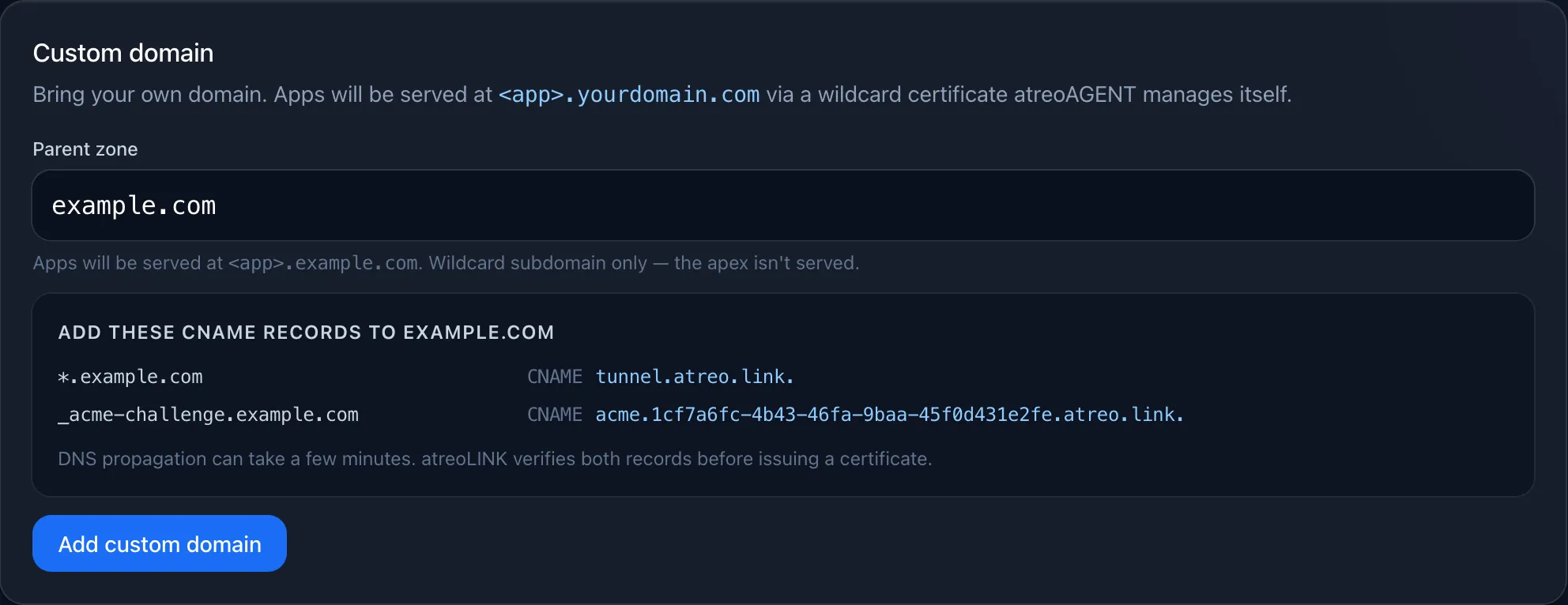
-
Add the CNAMEs at your registrar:
*.home.example.com CNAME tunnel.atreo.link._acme-challenge.home.example.com CNAME acme.<your-device-id>.atreo.link.The
<your-device-id>is the UUID shown on the page. Both records are derived per-server. -
Wait for DNS propagation. A couple of minutes is typical, longer if your registrar caches aggressively. You can check with
dig +short *.home.example.comfrom a terminal; it should resolve totunnel.atreo.link. -
Click Add custom domain. The dashboard verifies both CNAMEs against
1.1.1.1and8.8.8.8. If verification fails, you’ll see “DNS verification failed” with the expected target. Fix the records and retry. -
Wait 15 to 60 seconds for the agent to issue the wildcard certificate. atreoLINK writes the ACME TXT record into the delegated zone, Let’s Encrypt follows the CNAME chain and validates it, and the agent receives the certificate over the control channel.
-
Browse to
https://jellyfin.home.example.com. You’re in.
Pick the right parent zone
Section titled “Pick the right parent zone”Most users use a subdomain like home.example.com rather than the apex. That way only the wildcard under home. is touched.
Apex domains are not served. Don’t enter example.com as the parent zone unless you genuinely have nothing else hosted there.
Renewal failures
Section titled “Renewal failures”The agent renews the wildcard certificate well before expiry. If renewal fails for the same parent zone three days in a row, the agent sends you a push notification (severity warning) so you can investigate before the cert actually expires. The most likely causes are:
- Your registrar’s nameservers stopped honouring the
_acme-challengeCNAME. Check the record still resolves. - atreoLINK’s DNS relay is unreachable from your network for the renewal window.
The agent retries on its own schedule; you don’t need to do anything to trigger another attempt. The notification cools down for 24 hours per parent zone so a sustained outage doesn’t spam you.
Remove a custom domain
Section titled “Remove a custom domain”In the Custom domain section, click Remove. The dashboard signs the removal envelope, atreoLINK clears the row, and the agent stops serving the wildcard certificate. The legacy <yourname>.atreo.link URL keeps working.
You can also leave the CNAME records in place at your registrar. They’ll just stop resolving to a working endpoint.
© 2026 atreoLABS. All rights reserved.
WireGuard is a registered trademark of Jason A. Donenfeld.