

Notifications
Apps running on the server you’ve joined can send you push notifications: “a photo album has been shared with you”, “a file is ready to view”, “the front door rang”. atreoLINK delivers them encrypted end to end, so the relay can never read the contents.
Permission
Section titled “Permission”The first time you open the app, your phone asks whether to allow notifications. If you tapped Don’t allow and want to change your mind:
- iOS: Settings → Notifications → atreoLINK → Allow Notifications
- Android: Settings → Apps → atreoLINK → Notifications
Turning notifications on or off in the app
Section titled “Turning notifications on or off in the app”Sign in to the app once and notifications start arriving from every server you’re a member of.
To turn them off, open Settings in the app and flip the Push notifications switch. Flip it back on at any time. The toggle controls every server you have access to.
The Notifications tab
Section titled “The Notifications tab”The middle tab in the bottom bar is Notifications, your in-app history of everything that’s been sent to you.
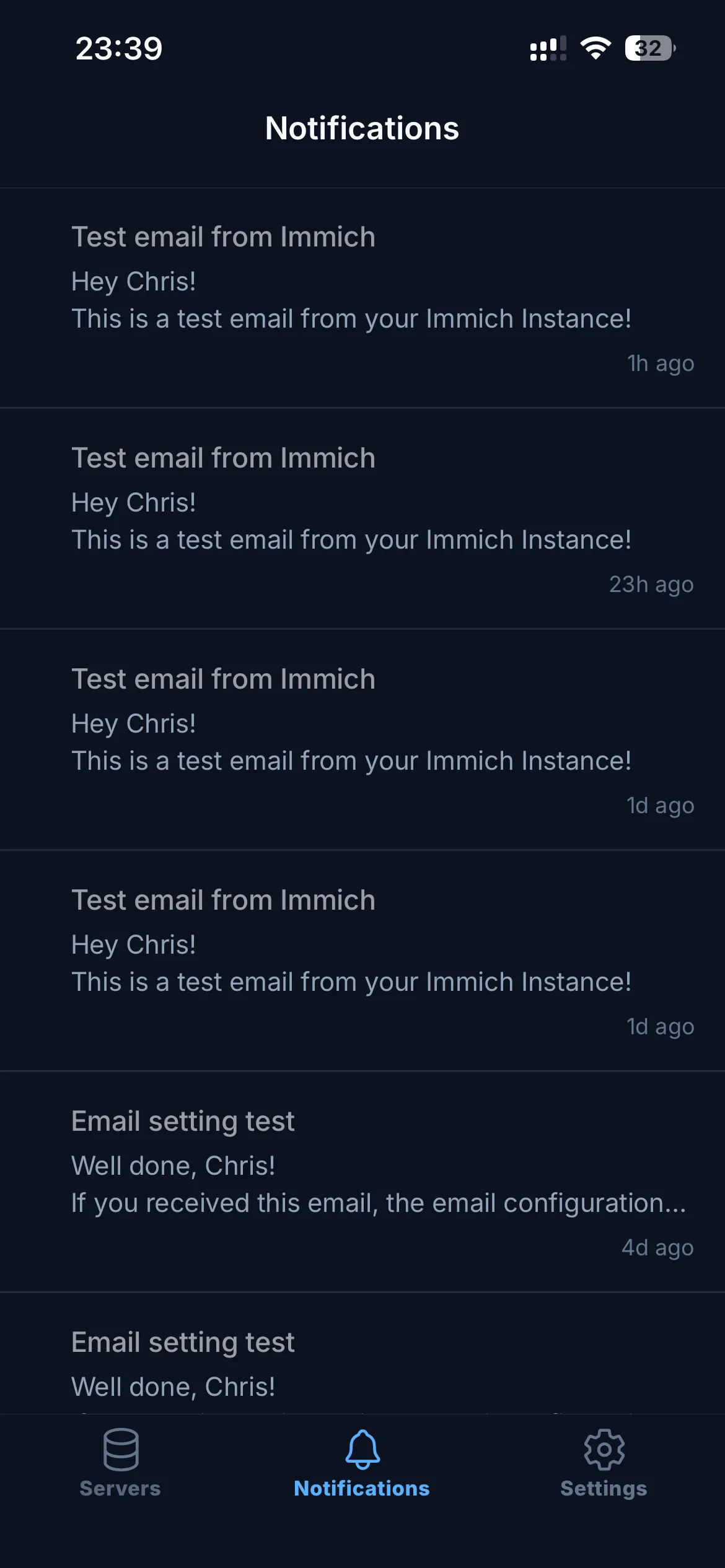
Each row shows:
- Severity dot. Red for errors, orange for warnings, blue for informational.
- Title and a body preview. The first line you saw on the lockscreen.
- Timestamp. “just now”, “5m ago”, “2h ago”, and so on.
Swipe left to delete. Tap to open the full detail view.
The detail view
Section titled “The detail view”The detail view shows the full notification body, not just the lockscreen excerpt. Notifications can carry three layers of content, encrypted separately:
- Summary. A short title and body shown on the lockscreen.
- Plaintext. The full plain-text body.
- HTML. Formatted text, links, and images.
If a notification includes both HTML and plaintext, the detail view picks HTML. If only plaintext is sent, you get plaintext. If only the summary is sent, the detail view shows the summary.
What kinds of notifications will I get?
Section titled “What kinds of notifications will I get?”That depends on what the server’s owner has set up. Common ones:
- A photo album has been shared with you.
- A file is ready to view or download.
- Someone rang the front door.
- Your media library has new content.
Notifications are sent per-member, so the server owner can choose who gets which alerts.
Browser notifications
Section titled “Browser notifications”The same notifications also reach the atreoLINK web dashboard if you’ve enabled them there. They appear as OS-level banners, even when the dashboard tab is in the background. Open the Notifications page in the dashboard and follow the on-screen prompts to enable them.
Managing your devices
Section titled “Managing your devices”The web dashboard’s Settings page lists every device you’re currently signed in on, every notification pairing, and every WireGuard tunnel client you’ve installed. You can sign out a device remotely, remove a notification pairing, or revoke a tunnel peer.
Retention
Section titled “Retention”Your inbox keeps the 100 most recent notifications. Once you’re at 100, the oldest one falls off automatically as each new notification arrives.
Encryption
Section titled “Encryption”You don’t need to do anything to enable encryption; it’s always on. The mechanics:
- The server’s app encrypts each of the three fields (summary, plaintext, HTML) to your atreoLINK identity key.
- atreoLINK relays the encrypted payload but cannot read it. Nor can the server’s owner, because the keys are tied to your account.
- Your phone decrypts on receipt, even on the lockscreen, before you tap the banner.
“I’m not getting notifications”
Section titled ““I’m not getting notifications””In order:
- Check phone permission. Settings → Notifications → atreoLINK.
- Check the in-app toggle. Settings → Push notifications.
- Check the Notifications tab. If notifications are arriving but you’re not seeing the banner, your phone’s Do Not Disturb / Focus mode may be silencing them.
- Sign out and back in. This re-registers your push tokens with atreoLINK.
- Reinstall the app as a last resort.
© 2026 atreoLABS. All rights reserved.
WireGuard is a registered trademark of Jason A. Donenfeld.