

Accept an invite
When someone invites you, they’ll send you a link by email, text message, or any other channel. The link looks something like:
https://app.atreolink.com/invite/abc123...Opening the invite
Section titled “Opening the invite”-
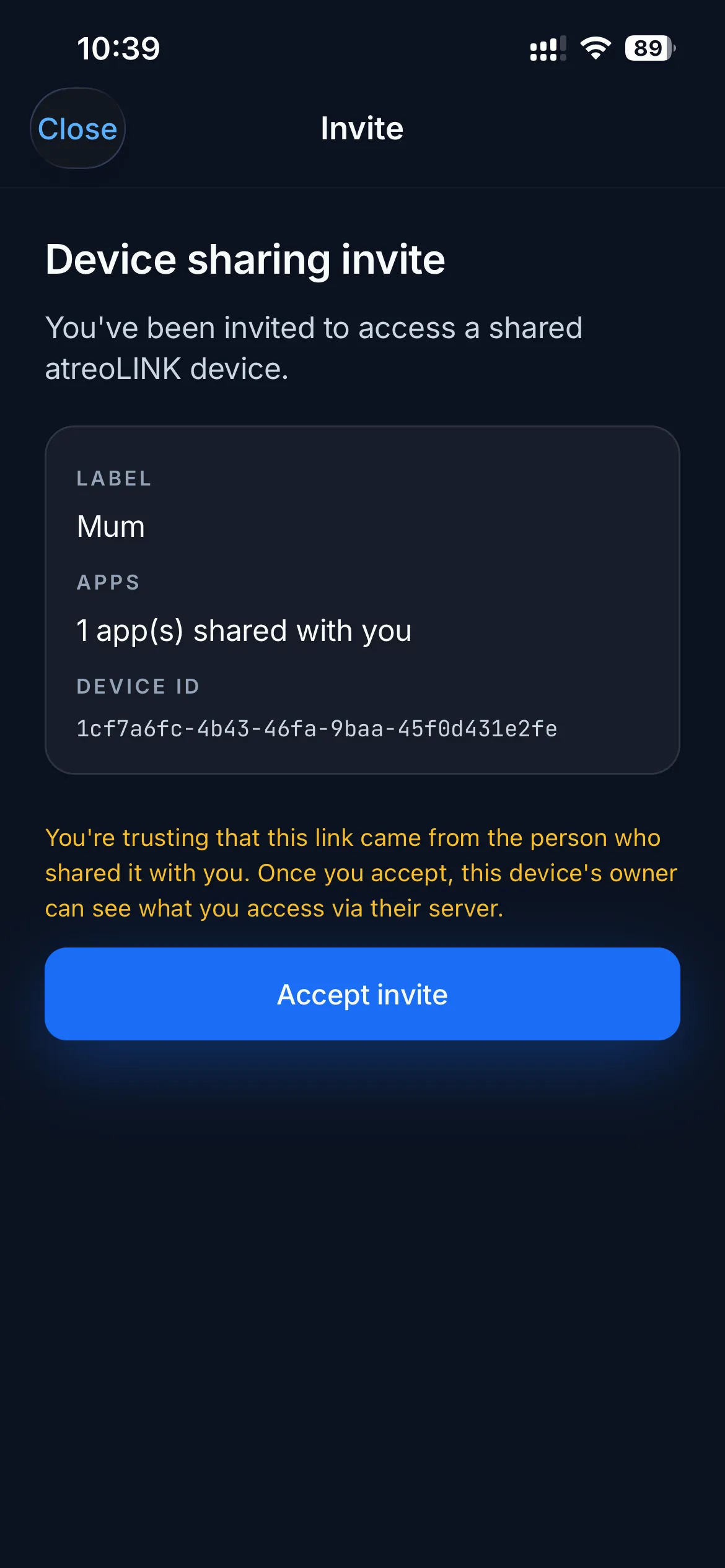
Tap the invite link on your phone. If you have the app installed, it opens directly into the invite screen. If not, the website opens. Install the app, then tap the link again.
-
Review what you’re being given access to. The screen shows:
- The name of their server (e.g. “Mum’s server”).
- The list of apps they’re sharing with you (e.g. Jellyfin, Immich, Home Assistant).
- Who invited you.
-
Tap “Accept invite”. If you don’t already have an atreoLINK account, the app will guide you through creating one.
-
Complete the sign-in or sign-up flow. See Sign in for details on the two-factor authentication setup.
-
You’re in. The server appears in your Servers tab. Tap Connect, then open an app.
Invite expiry
Section titled “Invite expiry”Invite links typically expire after 7 days. If your link no longer works, ask the person who invited you to send a fresh one. They can do this from their atreoLINK dashboard.
What if I have multiple servers shared with me?
Section titled “What if I have multiple servers shared with me?”You can be a member on as many servers as you like: your in-laws’ server, your sibling’s server, your own. Each one shows up as a separate row in the Servers tab.
Each server has its own list of apps and its own access rules, controlled by whoever owns it.
© 2026 atreoLABS. All rights reserved.
WireGuard is a registered trademark of Jason A. Donenfeld.