

Tunnel settings
The atreoLINK app gives you a few ways to control when the WireGuard tunnel comes up and goes down. The controls are slightly different on iOS and Android because the two operating systems handle VPNs differently — this page covers both.
| Feature | iOS | Android |
|---|---|---|
| One VPN profile per paired server | Yes | No (single shared tunnel) |
| Automatic Connect on Demand per server | Yes | No |
| Per-server Tunnel settings screen | Yes | Yes (Always-on VPN only) |
| Skip on local network | Yes | No |
| System Always-on VPN | No | Yes |
| Tunnel restored after reboot | n/a (covered by on-demand) | Yes |
Per-server VPN profiles
Section titled “Per-server VPN profiles”Every paired server gets its own iOS VPN profile, named atreoLINK · <server name>. If you’ve paired three home servers — your own, your sister’s, your dad’s — you’ll see three entries under Settings → General → VPN & Device Management → VPN.
The first time you tap Connect on a device the app hasn’t seen before, iOS pops up the system dialog “atreoLINK Would Like to Add VPN Configurations”. Tap Allow and authenticate with Face ID, Touch ID, or your passcode. You’ll only see this prompt once per server — subsequent connects to the same server are silent.
Connect on Demand
Section titled “Connect on Demand”Each server’s profile is configured to bring its tunnel up automatically when an app on your iPhone tries to reach one of that server’s hostnames.
In practice, this means you don’t need to open atreoLINK and tap Connect first. Open Safari and visit https://jellyfin.alice.atreo.link, or open the Jellyfin app pointed at the same URL, and iOS brings the tunnel up before the request leaves your phone. The tunnel comes down again on its own after a period of inactivity.
Per-server tunnel settings
Section titled “Per-server tunnel settings”In the Servers tab, each server row has a small gear icon. Tap it to open the Tunnel settings sheet for that server.
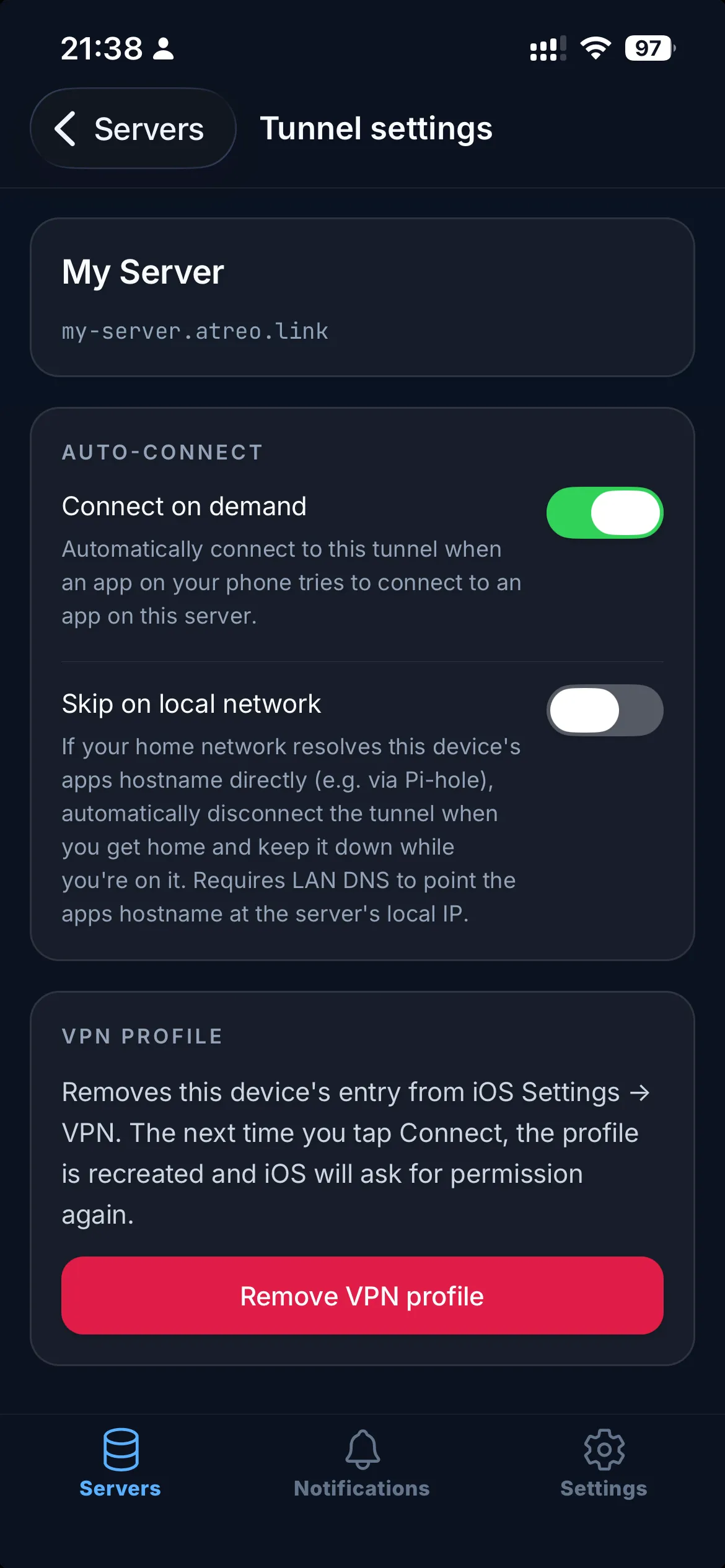
The sheet groups three controls into Auto-connect (the two toggles) and VPN profile (the remove button):
Connect on Demand
Section titled “Connect on Demand”A toggle, on by default. Turn it off if you’d rather the tunnel only come up when you explicitly tap Connect on the device row.
You might want this off for a device you only use occasionally, or one you’d prefer to bring up by hand — for example a homelab you only touch when you’re actively working on it.
Skip on local network
Section titled “Skip on local network”A toggle, off by default. Only available when Connect on Demand is on. See Skip on local network below for what it does.
Remove VPN profile
Section titled “Remove VPN profile”A button that deletes this device’s VPN profile from iOS Settings. The entry disappears from Settings → General → VPN.
This doesn’t unpair the device from your atreoLINK account — your access, ACLs, and apps all stay exactly as they were. The next time you tap Connect on this device, atreoLINK recreates the profile (and iOS prompts you again to allow VPN configuration).
Useful when:
- You want to clear out a stale entry from iOS Settings without unpairing.
- A device’s profile has got into a weird state and you want a fresh one.
- You’re handing the phone to someone briefly and don’t want a Connect on Demand rule firing on hostnames they might type.
Skip on local network
Section titled “Skip on local network”When Skip on local network is on and you’re at home, atreoLINK keeps the tunnel out of the way so traffic goes direct over the LAN. It does this two ways:
- It won’t bring the tunnel up for that device’s hostnames while you’re on the home network (the on-demand probe over HTTPS on Wi-Fi succeeds, so iOS suppresses it).
- If the tunnel is already up when you get home — you connected elsewhere and then arrived — the app tears it down once it confirms you’re on the server’s own network.
Either way your requests then go straight to the apps over Wi-Fi. Away from home the probe fails and the tunnel comes up exactly as it would have without this setting.
This is intended for users who run split-horizon DNS on their home network — a Pi-hole, AdGuard Home, OPNsense Unbound, or router-level DNS override that resolves your apps hostnames to the agent’s LAN IP when you’re at home. With that in place, your phone can talk to Jellyfin or Immich directly over Wi-Fi instead of routing through the tunnel, which avoids the small latency overhead of the WireGuard hop.
Setting up split-horizon DNS on your local resolver is covered on the Trusted networks page — the same DNS override is used for both features. (If you have multiple devices, you’ll need an override for each device’s hostnames.)
What happens on different networks:
| Network | Behaviour |
|---|---|
| Home Wi-Fi with split-horizon DNS set up | Probe succeeds → no tunnel comes up, and an already-connected tunnel is torn down. Traffic goes over the LAN. |
| Home Wi-Fi without split-horizon DNS | Probe fails fast → tunnel comes up as normal. The setting does nothing here. |
| Coffee shop / hotel Wi-Fi | Probe fails fast (DNS resolves to the tunnel-only target, which isn’t reachable) → tunnel comes up. |
| Cellular | Probe is skipped entirely. Tunnel comes up immediately, no first-request latency cost. |
The TLS certificate served on the LAN is the agent’s existing wildcard cert — the same one used over the tunnel — so the LAN probe and any subsequent direct requests validate cleanly against the agent’s reverse proxy.
With the tunnel down at home, the server still shows an On network pill and its apps stay open — atreoLINK reaches them directly over the LAN (see On your home network). Because tapping Connect would just trigger another auto-disconnect, the app doesn’t offer it while you’re on the LAN with this toggle on.
Leave Skip on local network off if you don’t run local DNS at home. It costs you nothing to leave on, but it also does nothing useful without the matching DNS override.
Android
Section titled “Android”Android’s VPN model is different from iOS: there’s no per-app domain trigger, and only one VPN tunnel can be active at a time. atreoLINK uses two Android-specific features to make the tunnel feel as seamless as possible.
Always-on VPN
Section titled “Always-on VPN”Android has a system-level Always-on VPN toggle that keeps a chosen VPN alive across app kills, network changes, and the app being backgrounded. Once turned on for atreoLINK, the tunnel stays up even if Android aggressively closes background apps.
To enable it:
-
In the Servers tab, tap the gear icon on a server card. This opens the Tunnel settings screen for that server, which on Android contains a single Always-on VPN card.
-
Tap Open Android VPN settings. This deep-links you to the right Android system settings page — you don’t have to hunt for it yourself.
-
On the Android VPN settings page, tap the gear icon next to atreoLINK.
-
Turn on Always-on VPN. (You can optionally turn on Block connections without VPN, but that’s a stricter setting — leave it off unless you understand the trade-offs.)
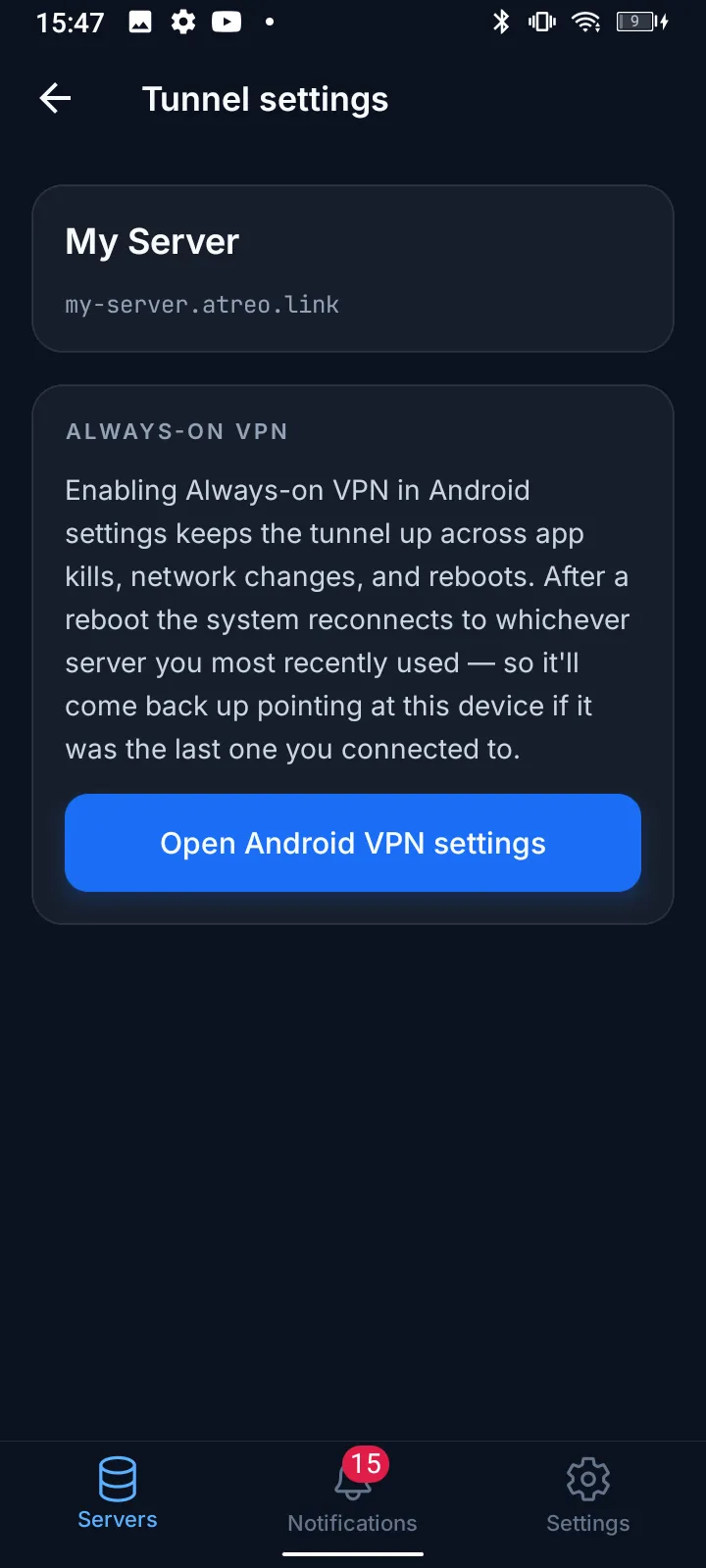
Always-on with multiple paired servers
Section titled “Always-on with multiple paired servers”Android can only keep one server’s tunnel active at a time, so Always-on VPN targets the server you most recently tapped Connect on. The Tunnel settings screen is reachable from every paired server’s gear icon, but the underlying Android toggle is system-level — there’s no separate Always-on setting per atreoLINK server.
To make Always-on follow a different paired server, open atreoLINK and tap Connect on that one — the system then keeps that server’s tunnel alive instead.
Boot restore
Section titled “Boot restore”After you reboot your phone, atreoLINK automatically restores the tunnel for the server you were last connected to. You don’t need to open the app first.
Restore runs the full handshake against the agent — it doesn’t just bring a stale tunnel back up — so if your access has been revoked while the phone was off, nothing comes up. The whole thing usually completes within about 30 seconds of you unlocking the phone.
Limitations:
- Restore happens after unlock, not at boot. atreoLINK needs to read encrypted credentials from secure storage, and those aren’t available until you’ve unlocked the phone for the first time after reboot.
- If the phone boots offline (airplane mode, no signal, no Wi-Fi reachable), the restore fails. The tunnel stays down until you open atreoLINK manually after you’re back online.
Cross-platform notes
Section titled “Cross-platform notes”- iOS has per-server VPN profiles, per-server Connect on Demand, the per-server Tunnel settings sheet (gear icon), and Skip on local network.
- Android has a single system-level Always-on VPN and automatic boot restore. The gear icon on a server card opens a Tunnel settings screen, but it only exposes Always-on VPN because Android’s VPN model doesn’t support per-server Connect on Demand or Skip on local network.
- The Connect on Demand model doesn’t exist on Android — Android’s VPN API is per-app, not per-domain. Always-on VPN is the closest equivalent.
- TV builds (Apple TV, Android TV) follow the same model as their phone counterparts. In practice you’ll just leave the TV connected to one device.
© 2026 atreoLABS. All rights reserved.
WireGuard is a registered trademark of Jason A. Donenfeld.