

Sign in
If you don’t already have an atreoLINK account, the mobile app guides you through creating one the first time it asks. The screens are the same whether you’re starting from an invite link or signing in directly.
Create an account
Section titled “Create an account”-
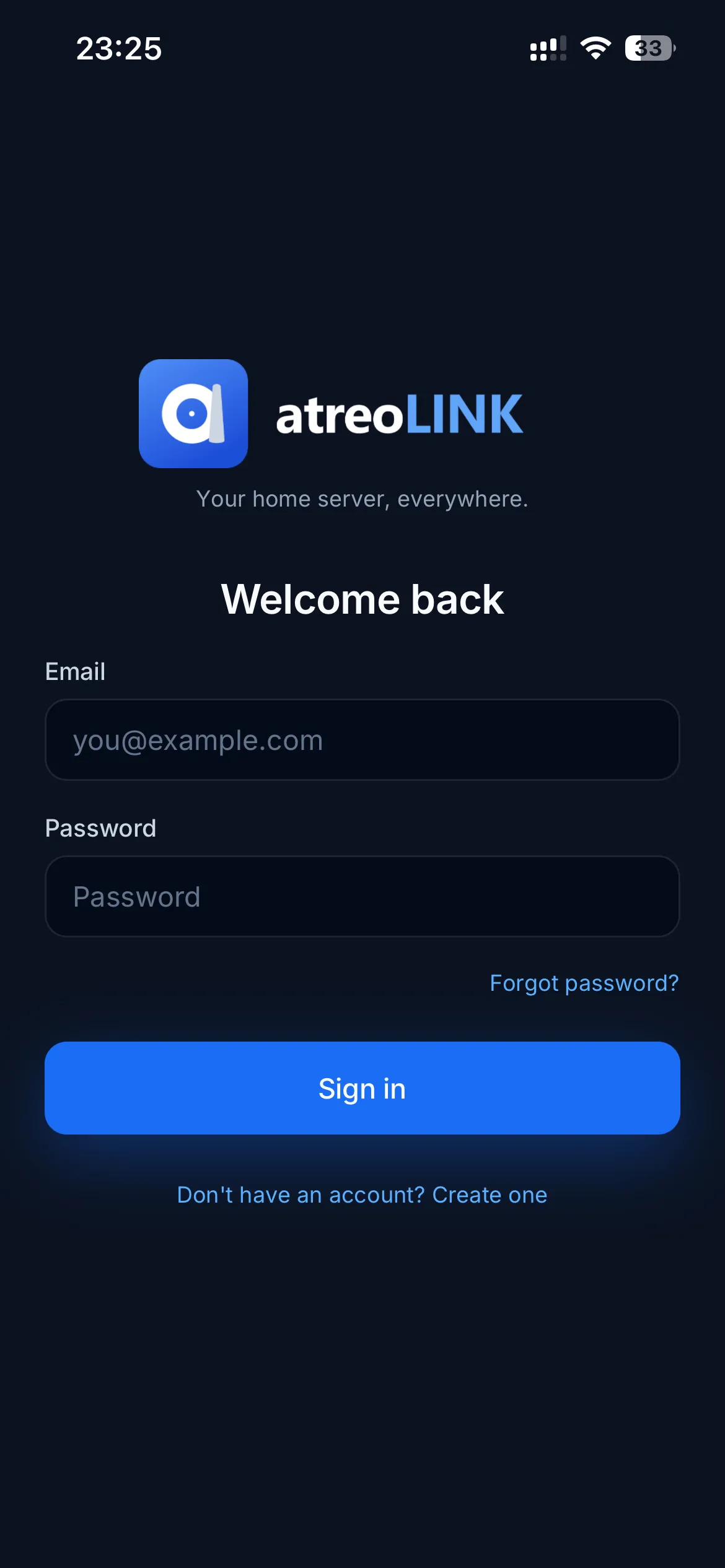
Open the app. You’ll land on the Sign in screen. At the bottom of the form, tap the Don’t have an account? Create one link.
-
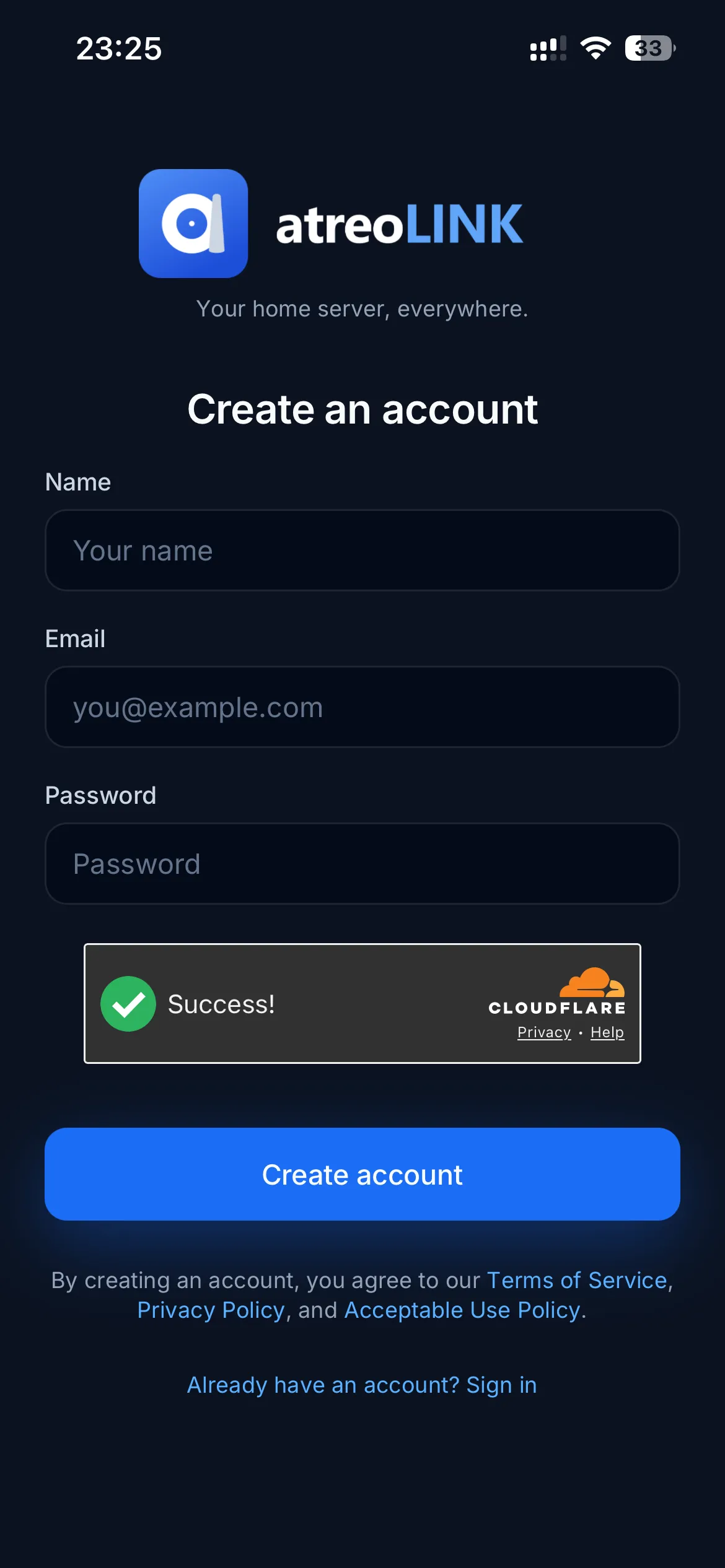
Enter:
- Name. What other members will see in their dashboards.
- Email. Used to send invites and recovery messages.
- Password. At least 12 characters, including at least one letter and one number. Choose something strong — we never see it (see below).
-
Tap Create account. The app sets up your account with atreoLINK.
Set up two-factor authentication
Section titled “Set up two-factor authentication”After your first sign-in, atreoLINK requires you to set up two-factor authentication (a 6-digit code from an authenticator app). You can’t skip this step. It’s how the system protects your account if your password ever leaks.
-
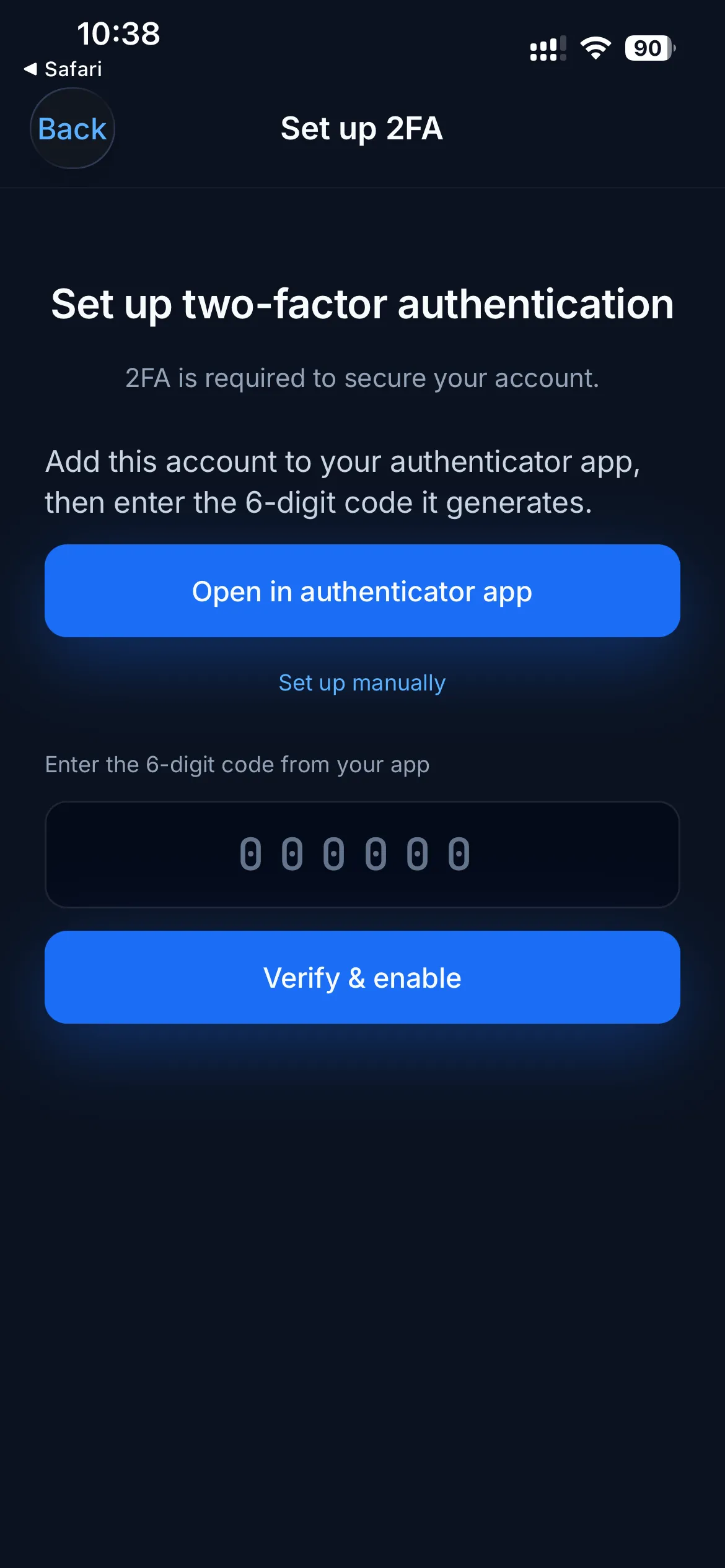
The app shows an Open in authenticator app button.
-
Tap Open in authenticator app. Your phone hands the setup off to whichever authenticator you have installed (Google Authenticator, 1Password, Authy, Apple Passwords, etc.) with the account details pre-filled.
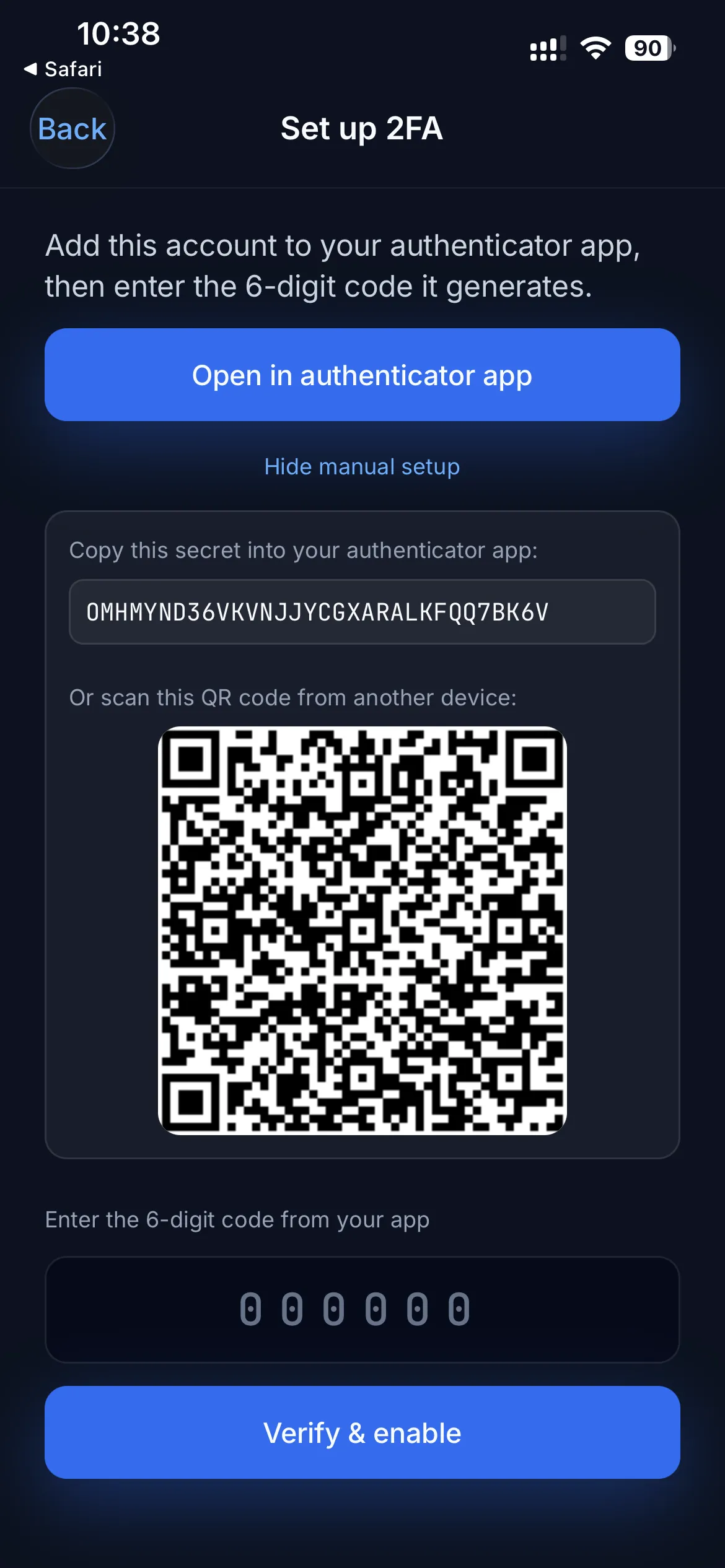
If you’d rather do it by hand, tap Set up manually to reveal a QR code and a setup key. Scan the QR with your authenticator app, or copy the key into it.
-
Your authenticator now shows a 6-digit code that changes every 30 seconds. Enter the current code in the app’s verification field.
-
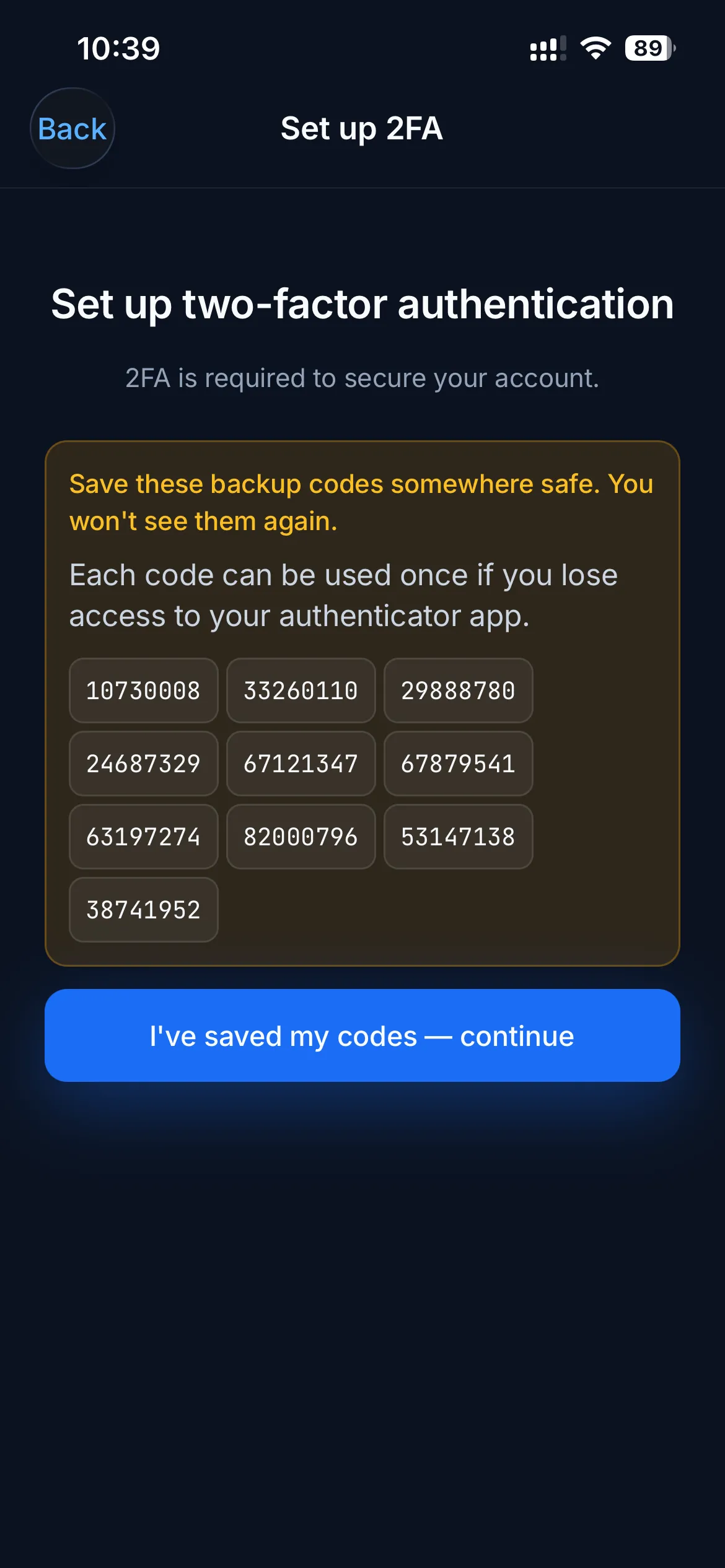
atreoLINK shows you backup codes. Write these down or save them somewhere safe.
Subsequent sign-ins
Section titled “Subsequent sign-ins”After the initial setup, signing in is two steps:
- Enter email and password
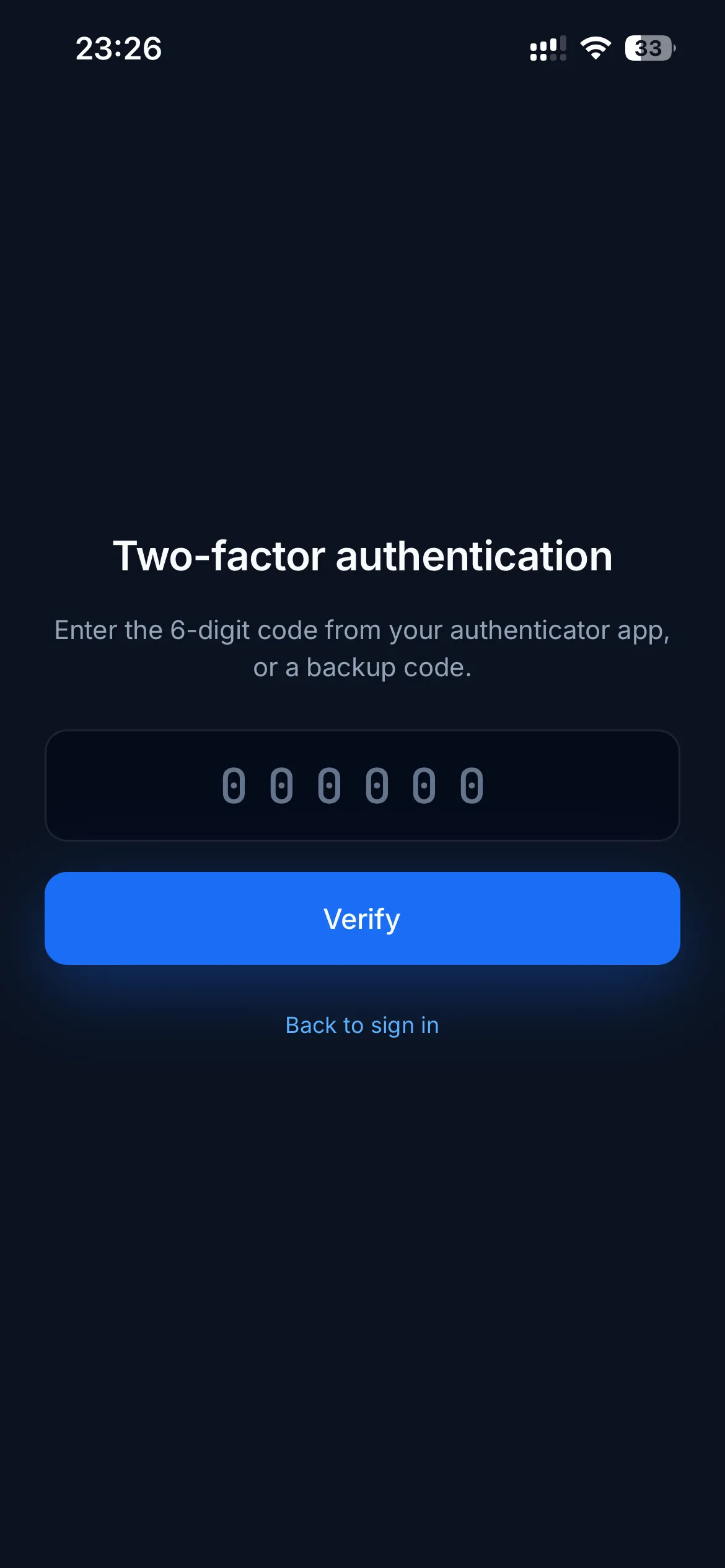
- Enter the 6-digit code from your authenticator app (or a backup code)
The app keeps you signed in across launches, so you typically only do this on first install or after signing out.
Forgot my password?
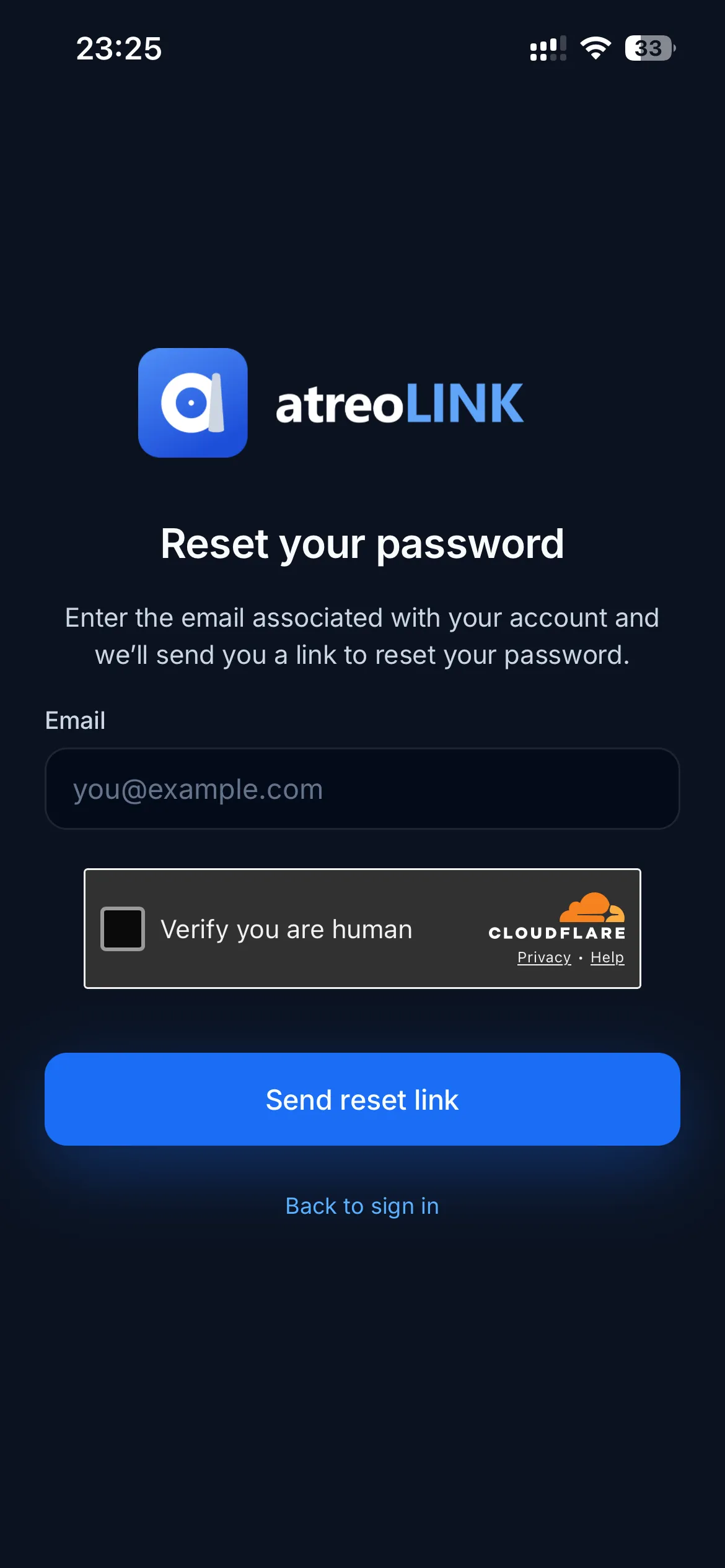
Section titled “Forgot my password?”Tap Forgot password? on the sign-in screen and follow the recovery flow.
© 2026 atreoLABS. All rights reserved.
WireGuard is a registered trademark of Jason A. Donenfeld.