

Invite members
Inviting someone gives them access to a chosen subset of apps on your server, via the atreoLINK app. Each invite is per-server. If you run two servers and you want your sister on both, you invite her separately on each.
Invites are managed from your server’s Manage page in the web dashboard.

Send an invite
Section titled “Send an invite”-
Sign in to app.atreolink.com, pick your server, and click Manage.
-
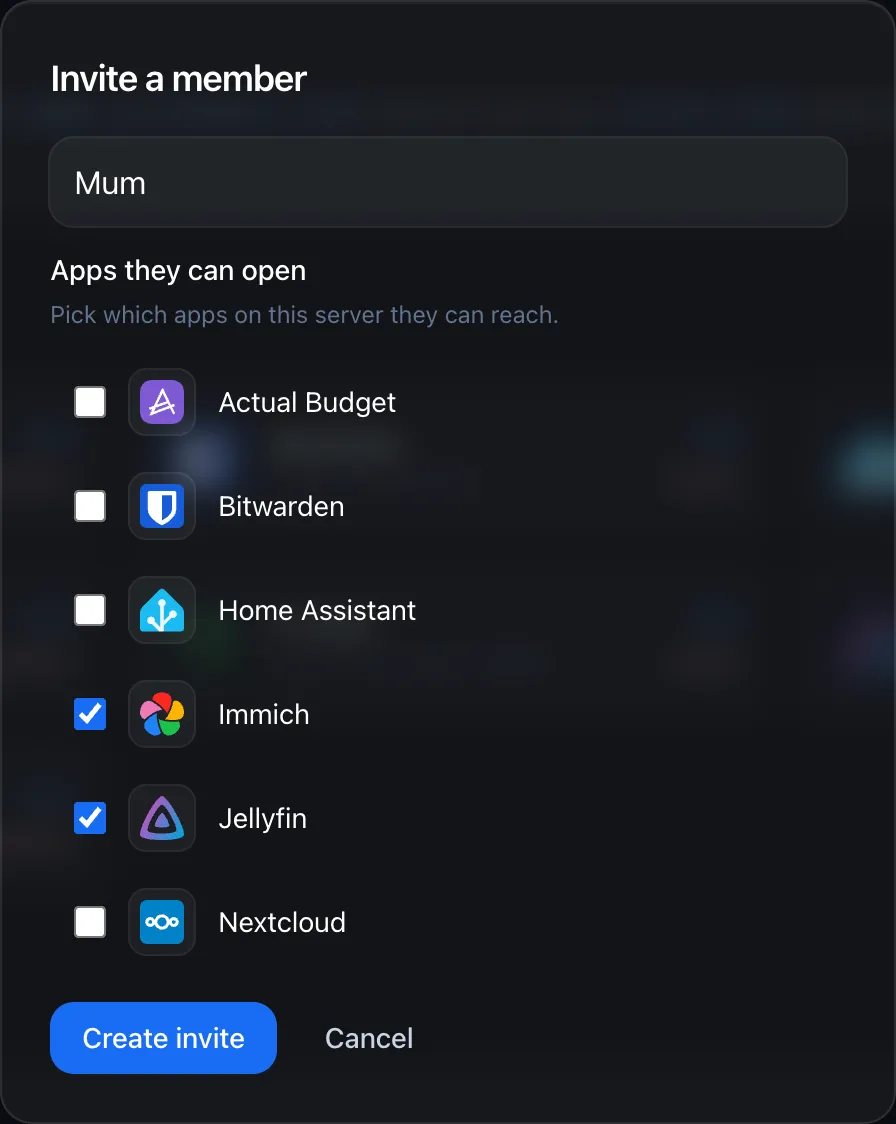
In the Members section, click + Invite member.
-
Fill in:
- Email. The person’s email. atreoLINK normalises it (lowercase, trim) before storing, so case doesn’t matter.
- Apps. Tick the apps this person should be able to access. You can change this later.
-
Click Create invite. atreoLINK creates a one-time invite, signs it with your account, and relays it to the agent. atreoLINK can’t fake one.
-
Copy the invite link and send it to the recipient over a secure channel you trust (Signal, WhatsApp, in person, etc.). atreoLINK does not send the invite for you — the link contains a key in its URL fragment (the part after
#) that atreoLINK never sees, so anything in atreoLINK’s possession is useless without the full link.
What the invitee sees
Section titled “What the invitee sees”When they tap the link:
- The link opens in the atreoLINK app (if installed) or the web dashboard.
- They see your server’s name and the list of apps you’re sharing.
- They sign in or create an account.
- They tap Accept invite. Your agent verifies the acceptance and adds the member to its ACL.
The apps appear in their Servers tab within seconds.
Invite expiry and revocation
Section titled “Invite expiry and revocation”- Invites expire after 7 days by default. If yours expires, click Resend invite to mint a fresh token.
- You can revoke a pending invite from the Members page. A single click removes the token from atreoLINK and prevents acceptance.
- Once accepted, the person becomes a Member. To remove them, see below.
Managing existing members
Section titled “Managing existing members”Each row on the Members page shows the member’s name, email, app permissions, and status.
| Action | Effect |
|---|---|
| Edit apps | Change which apps they can access. Takes effect within seconds. |
| Remove member | Revokes their access entirely. WireGuard peer is torn down, identity is removed from the ACL, notifications stop. |
| Revoke device | Removes one specific phone or tablet without unmemberment, useful if they lost a device. |
There are two roles:
| Role | Can access |
|---|---|
| Member | Only apps explicitly granted to them. Default. |
| Admin | All apps on the server, plus any added in future. Use sparingly. |
You (the owner) are always Admin. Granting Admin to others is a manual checkbox on the Edit member screen.
What gets revealed
Section titled “What gets revealed”When you invite someone:
- atreoLINK records the invite and the recipient’s email (already normalised).
- Your agent receives the invite over the control channel and stores it pending acceptance.
- The recipient’s email address is visible to atreoLINK (necessary for delivery).
See Authentication for the full identity-key handling story.
© 2026 atreoLABS. All rights reserved.
WireGuard is a registered trademark of Jason A. Donenfeld.