

Connect to a server
The Servers tab shows every server you’ve been invited to. Tapping Connect brings up the WireGuard tunnel and lets you start using apps.
The Servers tab
Section titled “The Servers tab”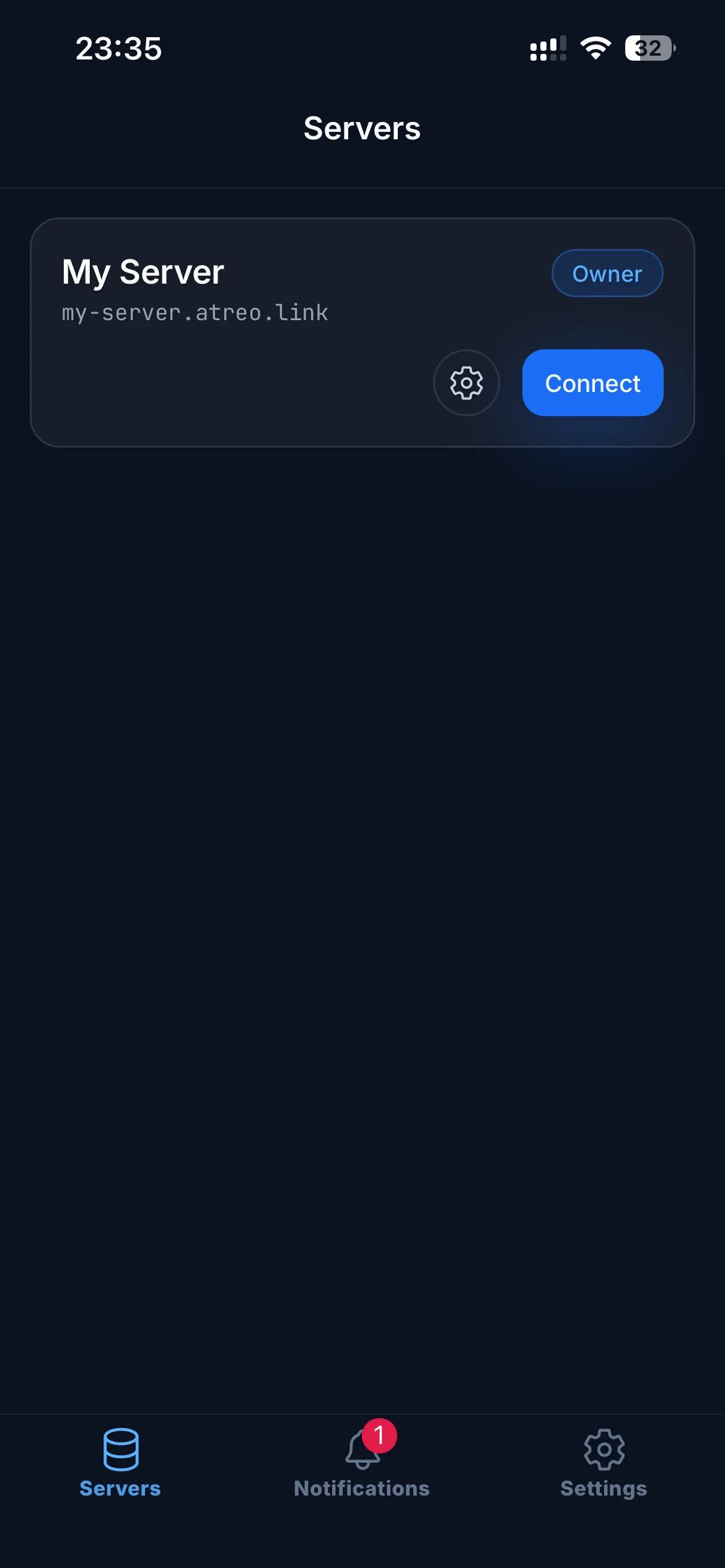
Each row shows the server’s name and a status:
| Status | Meaning |
|---|---|
| Disconnected | The tunnel isn’t running. Tap the row to connect. |
| Connecting… | The app is bringing up the WireGuard tunnel. Usually takes a couple of seconds. |
| Connected | The tunnel is up. The list of apps appears beneath, and you can tap one to open it. |
| On network | The server is reachable directly on your current network, so no tunnel is needed. The button reads Open instead of Connect, and apps work without bringing the tunnel up. See On your home network. |
Connecting
Section titled “Connecting”-
Tap the server row. The status changes to “Connecting…” and a spinner appears.
-
Wait for “Connected”. This is usually instant. If it takes more than 10 seconds, see Troubleshooting below.
-
Pick an app from the list that appears. See Open an app.
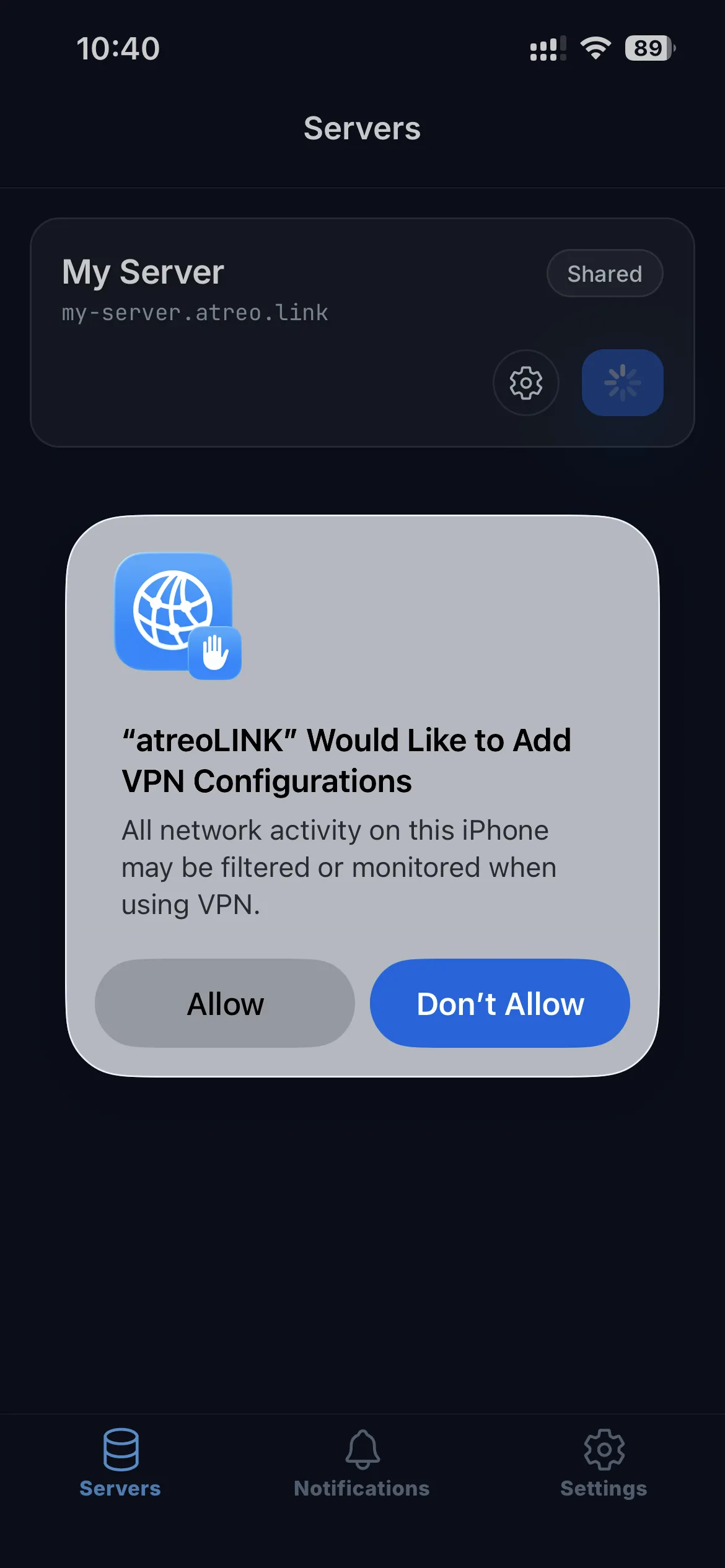
The first time you connect to a particular server, your phone shows a system permission dialog asking you to allow the VPN configuration. Tap Allow. On iOS this prompt appears once per paired server — see per-server VPN profiles.
You usually don’t have to tap Connect
Section titled “You usually don’t have to tap Connect”On iOS, each server’s tunnel comes up automatically the first time an app on your phone tries to reach one of that server’s hostnames — Safari, Chrome, Jellyfin, Plex, anything. You can usually just open the app you want and skip the Servers tab entirely. See Connect on Demand for the details and how to turn it off per-server.
On Android, you tap Connect once and the tunnel stays alive. If you also enable Always-on VPN in Android Settings, the OS keeps the tunnel up across reboots and aggressive app-killing.
On your home network
Section titled “On your home network”If you’re on the same network as the server — typically the owner’s home Wi-Fi — and that network is set up to reach it directly (the owner has configured local DNS and a trusted network), atreoLINK notices and skips the tunnel entirely.
When that’s the case:
- The server’s row shows an On network pill and an Open button instead of Connect.
- Tapping Open goes straight to the apps — no tunnel comes up, and apps load directly over the local network.
- Exposed-port apps use the server’s local address while you’re on the network.
You can still bring the tunnel up by hand (the apps screen has a Connect / Disconnect toggle in its header), but you don’t need to. On iOS, if you’ve turned on Skip on local network, the app goes a step further and tears the tunnel down when you get home, since the LAN already reaches everything.
This only kicks in when the server is genuinely reachable on your network. Out on cellular or other Wi-Fi, the row goes back to Connect and the tunnel works as usual.
When the server is behind CGNAT
Section titled “When the server is behind CGNAT”Some servers can’t open an inbound port because their ISP puts them behind carrier-grade NAT. You don’t have to do anything about it: when a direct connection isn’t possible, the app connects through atreoLINK’s relay automatically and using apps feels the same. A local or direct path is always preferred when one’s available, so the relay only carries you when it has to — the first connection may just take a moment longer while the path is set up.
The tunnel stays up in the background
Section titled “The tunnel stays up in the background”Once connected, the tunnel stays alive when you switch to another app or even when you kill the atreoLINK app. Your OS shows a VPN icon while it’s active.
This means you can:
- Use the native app for a service (Plex, Jellyfin, Home Assistant) instead of the in-app browser. Point it at the per-app URL: e.g. set the Plex server URL to
https://plex.alice.atreo.link. The traffic flows over the tunnel. - Receive notifications from your server without keeping atreoLINK in the foreground.
Disconnecting
Section titled “Disconnecting”When you’re done, tap Disconnect in the header of the apps list, or just leave the app. The tunnel will eventually time out on its own. Disconnecting doesn’t sign you out, just turns off the WireGuard tunnel.
Switching between servers
Section titled “Switching between servers”On Android, only one tunnel can be up at a time. The app handles the swap for you: tap a different server and the current tunnel is torn down before the new one comes up. If you have Always-on VPN enabled, it follows whichever server you most recently tapped Connect on.
Per-server tunnel settings (iOS)
Section titled “Per-server tunnel settings (iOS)”On iOS, each server row in the Servers tab has a gear icon that opens a Tunnel settings sheet. From there you can turn Connect on Demand on or off for that server, enable Skip on local network for use with split-horizon DNS at home, or remove the iOS VPN profile for that server.
See Tunnel settings for the full reference.
What’s a “server”, anyway?
Section titled “What’s a “server”, anyway?”In atreoLINK terminology, a server is a home server you connect to — your dad’s home server, your sister’s home lab, your own homelab. Each server runs a single agent, has a single subdomain, and exposes a single set of apps. The Servers tab lists the servers you’ve been invited to.
The phone, tablet, or computer you run the atreoLINK app on is a device (sometimes called a tunnel client). You can have several devices, and each one can connect to any server you’ve been invited to.
When it doesn’t connect
Section titled “When it doesn’t connect”- The server is offline. If the server owner’s home internet is down, the tunnel won’t come up. You’ll see “Connecting…” hang or fail.
- Your invite was revoked. If you’re sure the server is online and the connection still fails, ask the owner to check whether your access is still active in their dashboard.
- You’re on a restrictive network. Some corporate or hotel WiFi blocks the connection. Try mobile data instead.
If the connection works on mobile data but not WiFi, that’s almost always a network restriction on the WiFi side, not an atreoLINK issue.
© 2026 atreoLABS. All rights reserved.
WireGuard is a registered trademark of Jason A. Donenfeld.